Frankfurt Server Management Guide
This guide provides instructions for managing the Frankfurt dedicated server using the MegaRAC SP-X BMC interface.
Prerequisites
Credentials
Get the login credentials from Vaultwarden (Password Manager):
- Entry name: "support Frankfurt"
- Contains username and password for BMC access
Access URL
Server Hard Reset
Use this procedure when the server needs to be forcefully restarted (equivalent to pressing the physical reset button).
Steps
- Navigate to Dashboard
- Log in to the BMC interface at http://2.56.76.78
-
Click on Dashboard in the left sidebar
-
Execute Hard Reset
- Scroll down to the Power Control section on the right side
- Check the Hard Reset option
- Confirm the action
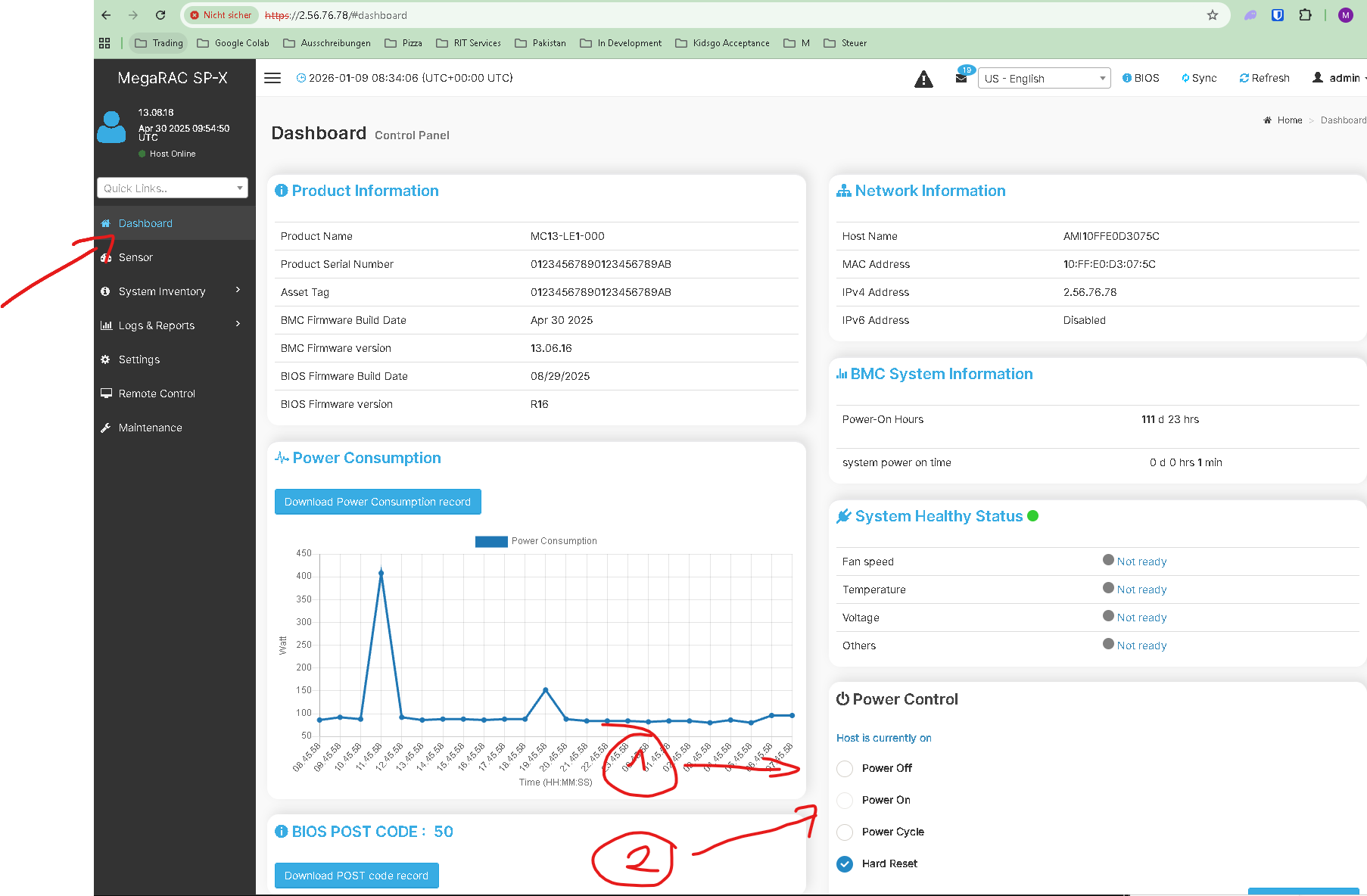
Power Control Options
The Power Control panel provides the following options:
- Power Off: Gracefully shut down the server
- Power On: Start the server
- Power Cycle: Power off then on (graceful restart)
- Hard Reset: Force immediate restart (use when server is unresponsive)
Note: Hard Reset should only be used when the server is unresponsive or when a forced reboot is explicitly required.
Remote Console Access
Access the server's console remotely to view the screen and interact with the system.
Steps
- Navigate to Remote Control
- Log in to the BMC interface at http://2.56.76.78
-
Click on Remote Control in the left sidebar
-
Launch Remote Session
- Find the H5Viewer section
- Click on Launch H5Viewer button
- The remote console will open in a new window/tab
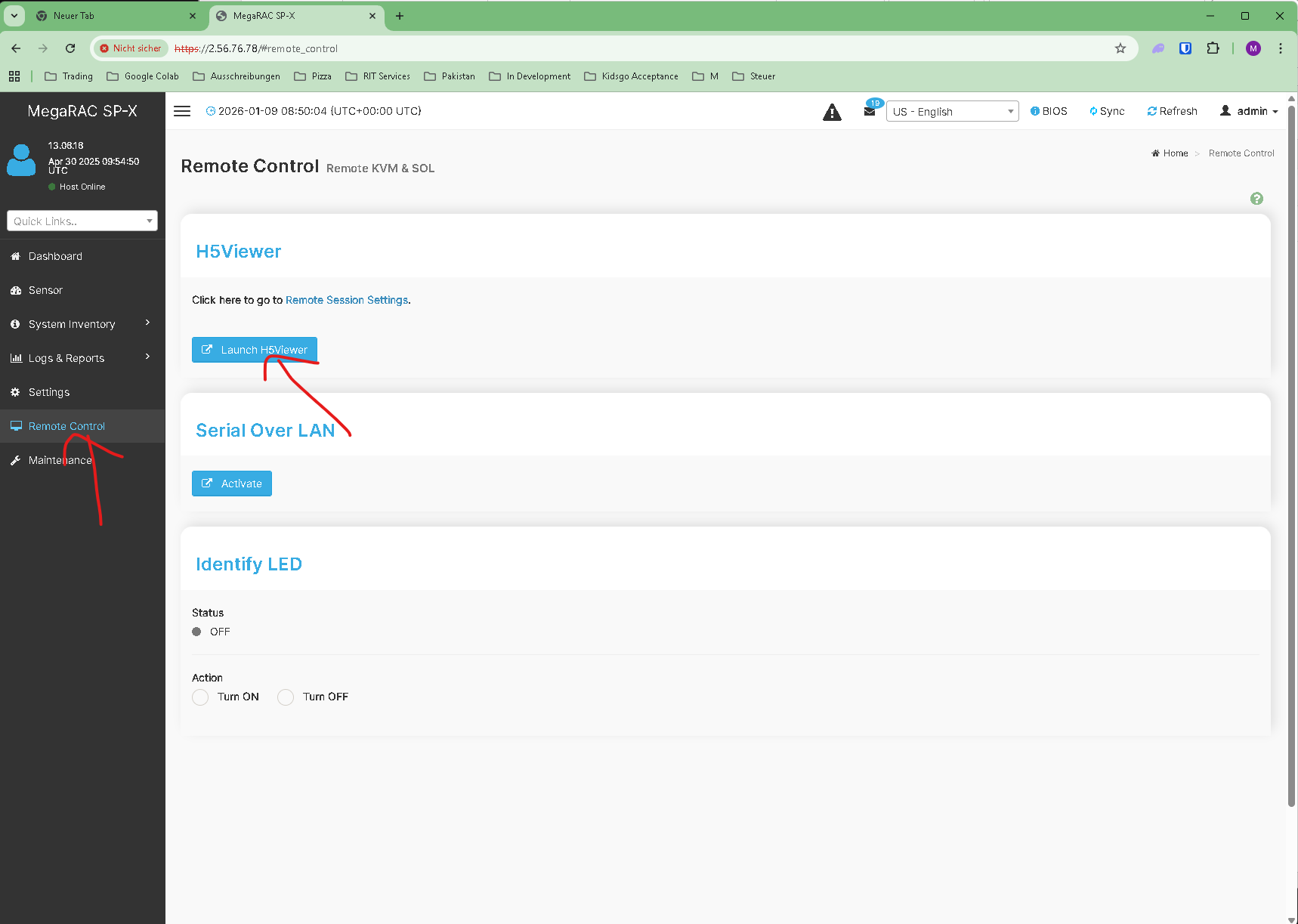
H5Viewer Features
The H5Viewer provides:
- Real-time screen display
- Keyboard and mouse control
- Virtual media mounting capabilities
- Remote power control integration
Alternative: Serial Over LAN
For console-only access (text mode):
- Use the Activate button in the Serial Over LAN section
- Provides SSH-like access to the server console
The Dashboard displays key server information:
- Product Name: MC13-LE1-000
- BMC Firmware version
- BIOS Firmware version
- IPv4 Address: 2.56.76.78
- MAC Address
- Host Name
System Health
- Power-On Hours
- System power state
- Fan speed, Temperature, Voltage status
- BIOS POST codes
Troubleshooting
Cannot Login
- Verify credentials from Vaultwarden entry "support Frankfurt"
- Check network connectivity to 2.56.76.78
- Clear browser cache if interface doesn't load
Server Unresponsive
- Check System Health Status on Dashboard
- Review BIOS POST code (should be valid code, not error state)
- Use Hard Reset if server is frozen
- Use Remote Console to diagnose boot issues
Remote Console Not Loading
- Ensure pop-ups are allowed in your browser
- Try different browser (Chrome/Firefox recommended)
- Check that Java/HTML5 is enabled
Best Practices
- Use Graceful Options First: Always try Power Cycle before Hard Reset
- Monitor POST Codes: Check BIOS POST codes after reset to ensure successful boot
- Document Actions: Note the reason for any forced resets
- Scheduled Maintenance: Use graceful power options during planned maintenance
Last Updated: 2026-01-09